-Photoroom.png)
5 Tips to Make SharePoint Search Easier
Updated: Sep 21, 2025
SharePoint is full of valuable files, documents, and pages but with so much content, finding exactly what you need can sometimes feel like searching for a needle in a haystack.
The good news? With a few practical strategies, you can turn SharePoint search into a productivity superpower.
Why Search Matters
Knowing how to search effectively saves time, reduces frustration, and keeps your work organized.
Work Faster: Spend less time scrolling through libraries and more time actually using your files.
Avoid Duplicate Work: When you can’t find a file, you might recreate it. Efficient search ensures you’re always working from the latest version.
Stay Organized: Search works best when files are tagged and named consistently. Good habits here benefit everyone on your team.
How Search Works
SharePoint search is smart and personalized. It helps you find the content you need by combining several factors:
Access Permissions: You only see files you’re allowed to view.
Metadata and Tags: Labels like project name, department, or document type make it easier to refine results.
Recent Activity: SharePoint prioritizes files and pages you’ve interacted with recently.
AI-Powered Suggestions: Microsoft Search can suggest relevant content from SharePoint, Teams, and OneDrive, and even respond to natural language queries.
Understanding these basics makes it easier to use the search bar effectively and get accurate results quickly.
5 Tips for Easier SharePoint Search
#1 – Use Specific Keywords
Start with clear, specific terms rather than generic words. Use quotation marks for exact phrases, e.g., "XYZ Proposal", and try filters such as file type or modified date.

But what if you’ve probably typed your query… and nothing worked? Don’t worry (breath in and breath out) and move on to the next tip!
#2 – Apply Filters and Metadata
Filters and tags let you narrow down search results. Use them to look for files by project, department, or document type. The more precise you are, the faster you’ll find what you need.

#3 – Save Searches You Use Often
If you frequently search for the same content, save your query or create a custom view in the library. This avoids repeating steps and speeds up your workflow.

#4 – Try Advanced Search Tricks
Power users can refine results using search operators:
Combine keywords with AND / OR
Use * as a wildcard to find variations of a word
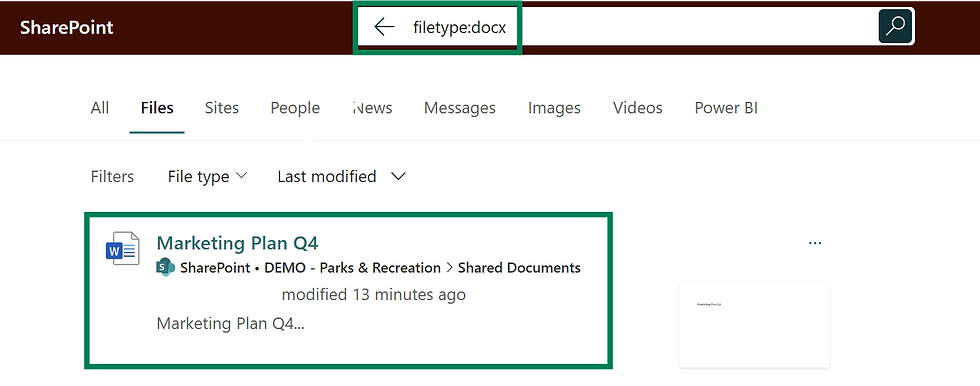
Search for specific file types with filetype:pdf or filetype:docx
#5 – Explore Related Content
SharePoint can show related files and documents based on the library or folder you’re in. After performing a search, look at the suggestions and “Related” sections these often surface the file you actually need.
You can also check recent documents or pinned content in the library or team site. These simple steps help you discover relevant files without typing extra searches or guessing keywords.

Work Smarter with SharePoint
Search doesn’t have to be frustrating. By applying filters, saving frequent searches, and using AI suggestions, you can find the files you need in seconds. Combine these tips with consistent file naming and tagging, and your SharePoint experience becomes faster, easier, and more organized.
At Echo Transformation, we help users navigate SharePoint Seamlessly.
Want to chat how SharePoint search can be optimized ? Let’s explore how, book a discovery session with us.
Spoiler Alert!
In our next Monday Article, we’ll show you how to limit hub search to just the hub and its associated sites so users get cleaner, more relevant results every time.

Comments