-Photoroom.png)
From Silent Bloat to Smart Control: SharePoint Versioning
In our previous article, From Illusion to Control: Managing SharePoint Storage Like a Pro, we explored how manual storage quotas protect your tenant from runaway usage. But quotas alone don’t stop another stealthy culprit of storage bloat: versioning.
At a recent conference, one of our Echo Transformation team members gave a talk on versioning, and the audience reactions confirmed what we suspected: many organizations are unknowingly consuming huge amounts of space just from file versions.
After applying versioning tuning in client environments, we were able to free up hundreds of gigabytes without removing any active files.
Let’s dive into how versioning works (manual vs. automatic), when to use each mode, and how you can apply those settings across your tenant.
Why Versioning Matters
Versioning is built into SharePoint and OneDrive to help users restore prior states, undo mistakes, or audit changes over time. Microsoft Learn
However, every version stored consumes storage capacity. When files are edited frequently, especially PowerPoint presentations and Word documents, versions can accumulate silently, sometimes dwarfing the size of the “live” content.
Even a modest 10 MB file, with 200 versions, equates to ~2 GB of storage used just for history. Multiply that across many files, and your tenant can fill up faster than you expect.
Comparing Manual and Automatic Versioning
When configuring versioning for a library, you generally have two approaches:
Manual Versioning
In manual mode, you specify a cap ( the latest 500 versions) or a combination of a cap + expiration (delete versions older than N days). Microsoft Learn
Pros:
Predictable storage usage.
Full control over retention.
Cons:
May prune versions too aggressively if editing increases.
May retain too many versions if editing slows down.
Example: If you set the cap to 500 major versions, when version 501 is created, SharePoint will discard the oldest version (bypassing the recycle bin) to enforce the limit.
Important: Retention policies or eDiscovery holds may override or prevent version trimming beyond what the policy allows.

Automatic Versioning
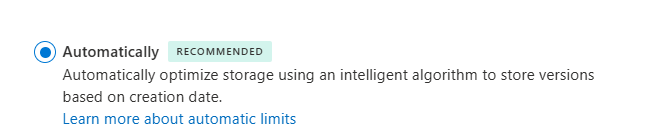
Automatic (or “intelligent”) versioning is a newer approach in SharePoint. It doesn’t just cap by number, it classifies versions over time and retains only the more meaningful ones.
Pros:
Efficient storage usage.
Less manual tuning required.
Cons:
Less predictable than manual mode.
May retain fewer versions than expected for compliance-heavy workloads.
How it works:
First 30 days: Keep all versions (no trimming).
Versions within the first month are preserved fully.
Days 30-60: Keep hourly versions (trimmed versions)
Versions created at the top of each hour.
Days 60-180 (2-6 months): Keep daily versions (trimmed hourly versions)
Versions from the start of each day.
Beyond 180 days: Keep weekly versions (trimmed weekly versions)
Versions from the start of a week indefinitely (until the 500-version cap is reached).
This approach thins out older versions while preserving meaningful snapshots over time.
Microsoft claims that automatic versioning can reduce version storage usage by up to 96% over six months, compared to traditional count-based retention.
Best Practices for SharePoint Versions Mode
Here are some rules of thumb:
High-editing workloads (design, collaboration): Use automatic mode to trim intelligently while preserving key snapshots.
Low-editing environments (small teams, policy libraries):Use manual mode with a modest cap (25–50 major versions) for predictability.
Hybrid approach: Use manual caps for compliance-sensitive libraries (legal, HR), and automatic mode for high-editing libraries.
Retention policies: Be aware that retention labels or legal holds may block or delay version trimming, regardless of mode.

Setting Defaults for New Sites
You can define your tenant’s default versioning behavior to apply to new sites and new libraries:
In the SharePoint Admin Center → Settings → Version History Limits, you can choose between Manual or Automatic as the default for new libraries/sites.
When a new site or library is created and does not have a site-level override, the default (manual or automatic) will apply.
However, existing sites and libraries will not automatically adopt the new default. You’ll need to take action to apply versioning settings retroactively.
Applying Settings to Existing Sites
To bring existing sites and libraries under control, we recommend the following process:
Identify the site(s):
Determine which sites or libraries you want to clean up or optimize for versioning.
Create a usage report:
Generate a report to understand how much storage each library is consuming due to version history.
Run a “What-If” analysis:
Use Microsoft’s recommended tools to simulate the effect of trimming versions before applying changes.
Trim versions on the selected site:
Apply the new versioning settings (manual cap or automatic/intelligent) to the site or library.
Monitor or stop the job if needed:
You can review the trimming job in progress and stop it if unexpected issues occur.
What if you only change defaults but don’t apply retroactively? New sites and libraries will inherit the default versioning settings, but existing sites will continue with their current configuration. Any problematic libraries will not benefit unless you explicitly update them following the steps above.
Admins can perform these steps via SharePoint Online Management Shell or PnP PowerShell. We can provide ready-to-use scripts, simply request them through our contact page: https://www.echotransformation.ca/contact-us
Real-World Impact
In one of our test environments, a department site hit 1.1 TB of usage, and we determined that over 65-70% of that was due to version history in just a handful of libraries.
After switching those libraries to automatic versioning and executing trimming, we reclaimed ~400-500 GB over 2-4 hours without deleting active documents.

Build Smarter with SharePoint
Versioning is powerful and necessary but left unmanaged, it becomes a shadow storage drain. By understanding the trade-offs between manual and automatic, applying sensible policies, and monitoring outcomes, you can maintain performance, predictability, and compliance.
At Echo Transformation, we help organizations design versioning strategies, run bulk updates, and put in place automation so your admins aren’t doing this one site at a time.
Want us to run a version-storage audit in your tenant or help you pick the right mode for each workload? Let’s talk.

Comments