-Photoroom.png)
Choosing the Right SharePoint List View for Better Data Management and Collaboration
- Jul 11, 2025
- 2 min read
Updated: Sep 28, 2025
SharePoint lists are essential tools for organizing, managing, and tracking business data within Microsoft 365. But to truly unlock their power, you need to choose the right SharePoint list view that fits your team’s workflow and information needs.
This guide explains the most popular SharePoint list views, how they work, and real-world examples, like content calendars and digital asset libraries, to help you visualize your data clearly and boost team productivity.
1 - List View (Default) – Perfect for Detailed Data Management
The List view is the default SharePoint view that displays your list data in a familiar spreadsheet-style table. It’s ideal for sorting, filtering, and bulk editing items when you need granular control.
Example: Use List view to manage a Content Calendar with columns such as Title, Content Type, Platform, Status, Assigned To, and Scheduled Date. This layout lets your marketing or editorial team easily track upcoming content, update deadlines, and filter by author or campaign, all in one place.

2 - Calendar View – Ideal for Scheduling and Deadlines
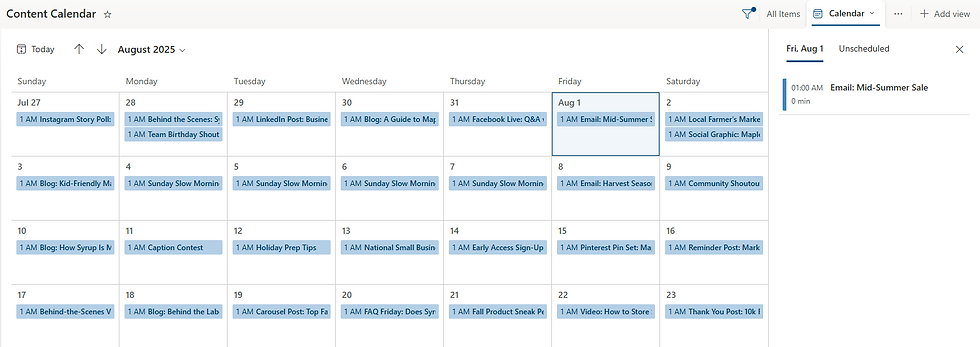
The Calendar view maps list items with date fields onto a calendar interface, helping teams see timelines at a glance.
Example: View your Content Calendar in Calendar view to track when blog posts, social media updates, or events are scheduled for publication. This provides a clear visual schedule, helping content managers avoid conflicts and ensure timely delivery.
3 - Board View (Kanban Style) – Visualize Progress and Workflows
The Board view groups list items into customizable columns, often representing stages of work or status categories. It’s excellent for teams managing processes and tracking task progress.
Example: Use Board view on your Content Calendar tasks to organize content creation by stages such as “Draft,” “Scheduled,” and “Published.” This Kanban-style layout helps your team visualize workflow, manage bottlenecks, and collaborate more effectively.

4 - Gallery (Tile) View – Best for Visual Content Libraries
The Gallery view transforms list items into visual cards, making it easy to browse images, videos, or rich media assets.
Example: A Digital Asset Library is perfect for Gallery view, where images or video thumbnails appear as clickable tiles. This lets creative teams quickly find and select media for campaigns, presentations, or websites without digging through folders.

Pro Tip: Use Multiple SharePoint List Views for Maximum Efficiency
Don’t limit yourself to one view! Switching between List view for detailed data entry, Board view for task tracking, and Calendar view for deadlines helps your team stay organized and responsive. Combining views transforms SharePoint lists from static data stores into dynamic work hubs.
Why Optimizing Your SharePoint List Views Matters
Effective use of SharePoint list views improves collaboration, reduces manual reporting, and speeds up decision-making. Whether you’re managing contracts, content calendars, or asset libraries, the right view helps your team access and act on information faster.
About Echo Transformation
At Echo Transformation, we empower organizations to unlock the full potential of their Microsoft 365 environments. We provide expert training, strategic consulting, and practical solutions that help teams design smarter SharePoint lists, use effective views, and enhance productivity.


Comments