-Photoroom.png)
Mastering Version History in SharePoint
- echotransformation
- Aug 8, 2025
- 2 min read
Your built-in safety net for tracking, recovering, and reviewing changes.
Ever made a change to a document and instantly regretted it? Or worse, someone else changed something and you don’t know what, when, or why?
Don’t panic, SharePoint Version History has your back.
Version History is one of SharePoint’s most underrated superpowers. It quietly tracks every edit made to a file or list item, letting you view, restore, or even compare changes with just a few clicks. Whether you’re co-authoring documents, managing reports, or reviewing approvals, Version History helps you stay in control.
What is Version History?
Version History in SharePoint allows you to track changes made to files or list items. Each time a file is updated, SharePoint saves a version of the document, complete with the date, time, editor’s name, and any comments left during the update.
Whether you’re trying to undo a change, check who made an edit, or compare different versions, Version History gives you the visibility and control you need.
How to Access Version History?
Go to your SharePoint document library or list.
Right-click on the document or list item, or select the three dots (...) next to it.
Choose “Version History” from the menu.
A list of previous versions will appear.

What Version History Shows You
Who made each change
When the change was made
Any version comments (if added during check-in)
The ability to open, view, or restore an older version
For Word, Excel, and PowerPoint documents, you can even compare versions if you open them in the desktop app, helpful for identifying exact text changes or formatting edits.
Restore Previous Versions (It’s Easier Than You Think)
Found a version you want to bring back?
Just click "Restore" next to the version you want. SharePoint doesn’t delete the current version, it just adds a new version with the restored content. That means nothing is lost.
Customize Your Versioning Settings
By default, SharePoint saves up to 500 versions per file, but this can be changed in Library Settings.
Admins or owners can:
Limit the number of versions kept
Enable or disable versioning
Require check-out for sensitive content workflows
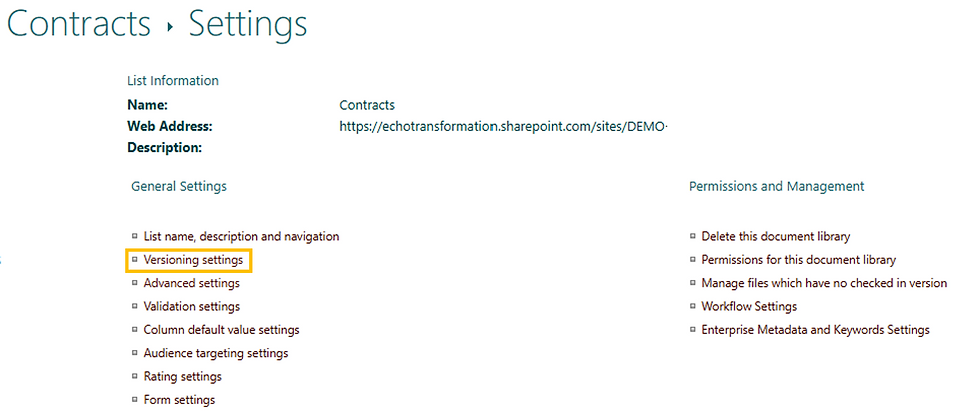
To adjust these settings:
Go to your document library
Click the gear icon -> Library Settings
Choose Versioning Settings
Why You Should Use Version History
Fix mistakes fast without calling IT
Audit who changed what during group work
Track the evolution of policies, templates, or reports
Boost accountability in high-visibility projects
Even if you only use it occasionally, having version history enabled ensures you never lose your work or your peace of mind.
Need Help Getting the Most Out of SharePoint?
Whether you're just starting out with SharePoint or looking to improve how your team collaborates, we’re here to help. From building smart document libraries to streamlining approval workflows and leveraging hidden gems like Version History, our team at Echo Transformation specializes in making Microsoft 365 tools work better for you.
We offer hands-on training, tailored support, and strategic advice to help your organization work smarter, not harder.
Let’s connect to explore how we can support your digital transformation journey. Reach out to us today to schedule a discovery session or learn more.


Comments