-Photoroom.png)
Outlook Calendar Tips for Busy Professionals
Feeling Like Your Calendar Is Running You Instead of the Other Way Around?
Back-to-back meetings, double bookings, and missed reminders can quickly overwhelm even the most organized professional. Outlook Calendar has powerful features that can help you take back control of your day.
Here’s how to get more out of your calendar in just a few minutes.
Outlook Features That Simplify Scheduling
Outlook Calendar includes built-in tools designed to streamline scheduling and give you a clearer picture of your time:
Unified Calendar View: See work, personal, and shared calendars in one place. Toggle visibility as needed to reduce clutter and ensure nothing slips through the cracks.
Smart Meeting Suggestions: Outlook proposes times when all attendees are available, cutting down on scheduling back-and-forth. Suggestions work best when attendees are within your organization or have shared availability.
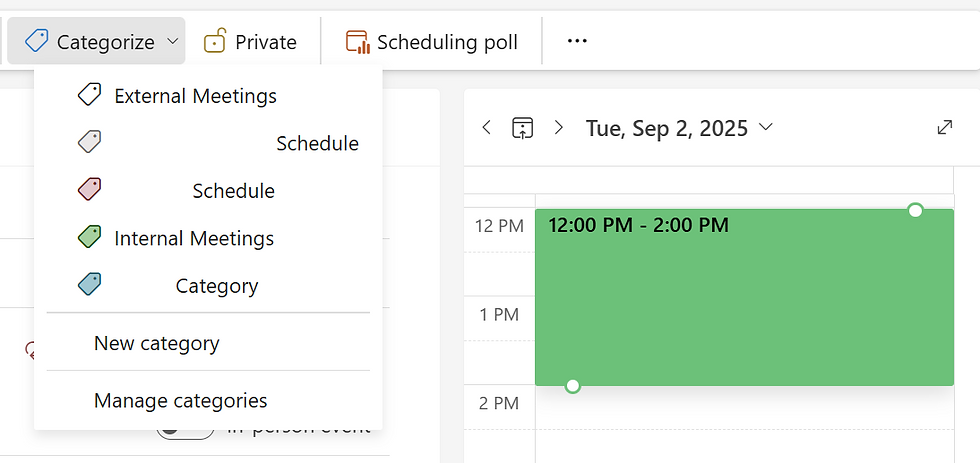
Color Coding: Assign colors to categories (projects, clients, personal events) to spot priorities at a glance. You can manage categories via the event window or through Settings.
Time Zones Support: Manage cross-border meetings with automatic time zone conversion. Make sure “Show time zones” is enabled in calendar settings if you're using Classic Outlook.
In both New Outlook and Outlook Web (which share many features), these tools are front and center. In Classic Outlook, they may be nested under menus but are still available.
These Tools Are Especially Helpful When…
You juggle multiple calendars (work, personal, team).
You waste time finding meeting slots that work for everyone.
You want a quick way to distinguish between types of events.
You work with people in different time zones.
How to Streamline Your Calendar in 5 Steps
Step 1 – Combine Your Calendars (1 minute)
Classic Outlook: Go to Calendar view → check boxes for each calendar you want to see together.
New Outlook & Outlook Web: Add calendars under Calendar > Add Calendar; toggle views in the left pane.

Step 2 – Turn On Smart Meeting Suggestions (2 minutes)
Classic Outlook: When creating a meeting, use the Scheduling Assistant tab to find common free time.
New Outlook & Outlook Web: Suggested times appear automatically when adding attendees (within your org or with shared calendars).

Step 3 – Use Color Coding for Categories (2 minutes)
Classic Outlook: Right-click a calendar item → Categorize → choose a color.
New Outlook & Outlook Web: Open the event → Category → pick or create a color. You can also manage categories via Settings.
Step 4 – Add Time Zone Support (1 minute)
Classic Outlook: In the appointment window → Options → Time Zones (ensure “Show time zones” is enabled in settings).
New Outlook & Outlook Web: Event window → Time Zones toggle under date and time.


Why It Matters
A well-managed calendar makes your day predictable and keeps you focused on priorities. With a unified view, smart suggestions, and visual cues, our Outlook calendar tips helps busy professionals cut down on scheduling chaos and make room for meaningful work.
At Echo Transformation
We help teams unlock the full potential of Microsoft 365 turning small adjustments, like smarter calendar use, into big productivity wins.
Ready to make Outlook work harder for your team? Book a free call with Echo Transformation today.


Comments