-Photoroom.png)
Streamlining Invoice Approvals with SharePoint’s Built-In Features
One of the things we love most about SharePoint is that it comes with so much capability built right in. Too often, organizations jump straight to custom development or complex automation when in fact, SharePoint already has tools that handle everyday business needs very well.
Take approvals, for example; SharePoint has this feature already baked in and straight out of the box!
Let’s use a practical scenario: approving invoices. Every department has expenses, and invoices often need to be reviewed by a manager before they’re paid. Instead of emailing attachments back and forth (and losing track along the way), you can configure a simple approval process directly inside your SharePoint library.
Setting the Stage: The Invoice Library
Imagine you have a document library called Invoices where finance staff upload new files and tags them with metadata such as Vendor Name, Amount, Invoice Date, and Due Date. This is our single source of truth, no duplicates floating around in inboxes, no guessing which version is final.

Turning on Approvals
Within that library, you can flip a switch to enable approvals by selecting:
The "Automate" button in the top navigation bar of your library.
Followed by the "Configure Approvals" button.
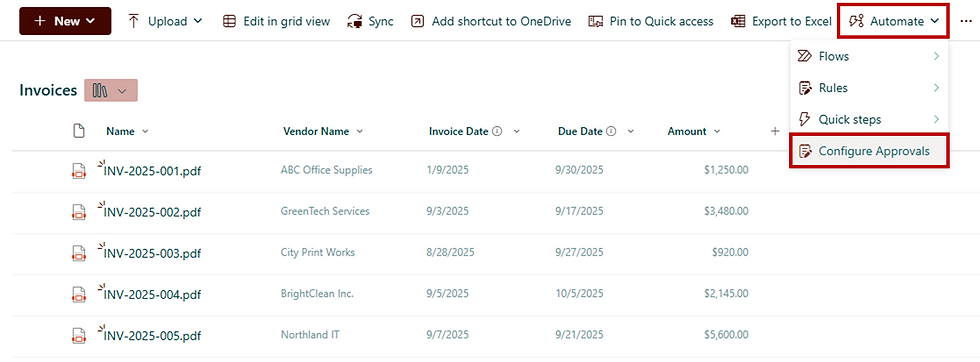
Once you've selected the "Configure Approvals" button, the configuration panel will open and prompt you to enable approvals in your library:
Turn on the toggle to Enable Approvals.
Select the Apply button.

SharePoint will then add an Approval Status field to every invoice, so you can instantly see which ones are Not Submitted, Requested, Approved, or Rejected.

Submitting an Invoice for Approval
When finance staff uploads an invoice, they can simply select the "Not Submitted" button, found in the "Approvals Status" column, to start the approval process.

Before sending off the approval, staff will have to define:
The name or email of the department manager who's approval is required.
If necessary, add details for context.
Select the "Submit" button to send off the approval request.

The manager is then automatically notified via Microsoft Teams / Approvals App, no extra emails or reminders needed. Your invoice Approval Status is also automatically updated to "Requested".

Handle Multi-Approver Review Cycle
You may be concerned that this out of the box feature cannot handle approval processes requiring multiple approvers...
Well SharePoint did it again, you certainly can handle this by simply:
Adding multiple Approvers in the "Name or email " field.
Then defining if the approval requires to be processed by all defined approvers or just one by selecting the "Require a response from all approvers" toggle.

And if your approval process also requires a specific approval order, this approval process can also handle that!
Select the "Require responses in the assigned order" toggle.
Define the approvers name in order, then the approval will be sent to each consequentially.

Approval Review
Here’s where it gets even better: the manager doesn’t have to go hunting in SharePoint. They’ll see the approval request directly in Microsoft Teams, in the Approvals app.
By selecting the notification, the manager has access to:
Review the invoice sent for review.
Enter any pertinent comments.
Approve or Reject the request.

The approval or rejection of the request will automatically update the SharePoint library approval status to reflect the decision made.

By selecting the approval status value of an item, you can also access additional details about the approval process. This provides you an audit trail containing:
The status of the approval
The details requested through the approval
The comments provided by the approver
And last but not least, the ability to Resubmit the approval once you've resolve the issues.

Why It Works So Well
This approach keeps things simple:
Transparency: Everyone can see where an invoice stands without asking around.
Speed: Approvals happen in Teams, where managers already spend their time.
Accountability: Status and approvers are logged in the library itself.
And all of this comes with zero extra cost or setup beyond turning on approvals. No Power Automate flows, no custom apps, no development. Just SharePoint doing what it does best.
Known Limitations to be Aware of
Like any tool, the built-in approval feature has its boundaries. A few things to be aware of:
One at a time: You can only submit approvals for one document at a time (no bulk submissions).
Fixed status values: Approval statuses are limited to Not Submitted, Requested, Approved, or Rejected. You can’t customize these.
Changes cancel approvals: If someone edits the file or its metadata while it’s under review, approved or rejected, the approval request is automatically canceled and its status reverts back to Not Submitted.
No version control impact: Approving or rejecting doesn’t create a new version of the document.
Final Thoughts
If your approval process is still managed through email chains or spreadsheets, this is one of those small changes that delivers big results. It’s a reminder that sometimes the smartest move isn’t adding more tools, it’s learning how to make the most of the ones you already have.
Want help streamlining your approval processes or other workflows?
Book a call with us today, we'd be more than happy to explore creative ways to make your tools work harder for you!


Comments