-Photoroom.png)
Workforce Time Tracking with Power Apps
Before You Build: Environment & Solution Best Practices
If you decide to create this app (or a similar process) in your own environment, it’s important to follow Power Platform best practices right from the start.
Always build and test your app in your department’s development environment, not directly in production. This protects your live systems and gives you a safe space to experiment and iterate.
Additionally, if your process includes multiple components apps, flows, lists, tables, roles, or connectors always build them inside a Power Platform solution.
Solutions keep everything organized and packaged together so you can:
Avoid chaos or scattered components
Maintain clean governance
Track dependencies
Easily export the solution from dev → prod in your tenant
Manage updates and versions smoothly
This approach keeps your environment structured and ensures a professional, scalable lifecycle for your app.
What is This App All About?
Managing staff across multiple locations can be challenging, especially when employees need a simple and consistent way to track their work hours. To address this, we developed a Power Apps application that lets users track time with Power Apps in a practical scenario for municipal pool lifeguards who need to clock in and clock out at different facilities.
Although this use case focuses on lifeguards, the app’s architecture is flexible and can support many internal processes that require time tracking. Our team also uses the same foundation internally for managing timesheets.
In this article, I’ll walk through the app concept, its structure, how each screen works, and potential future enhancements.
App Structure Overview
The app consists of three main screens:
Landing Page
Clock - In
Clock - Out
Saved Shifts
Each screen supports a different part of the workflow, with all data stored in a SharePoint list for easy access, reporting, and integration.
Landing Page
When users open the app, they are greeted with a landing page designed to guide them clearly and efficiently. The landing page includes:
A welcome message introducing the purpose of the app
General usage instructions so users understand how the process works
Three main navigation buttons:
Clock - In
Clock - Out
Saved Shifts
A training materials link at the bottom of the page for users who need help understanding the app’s functionality
This layout ensures that even first-time users know exactly where to go and how to proceed.

Clock In Page
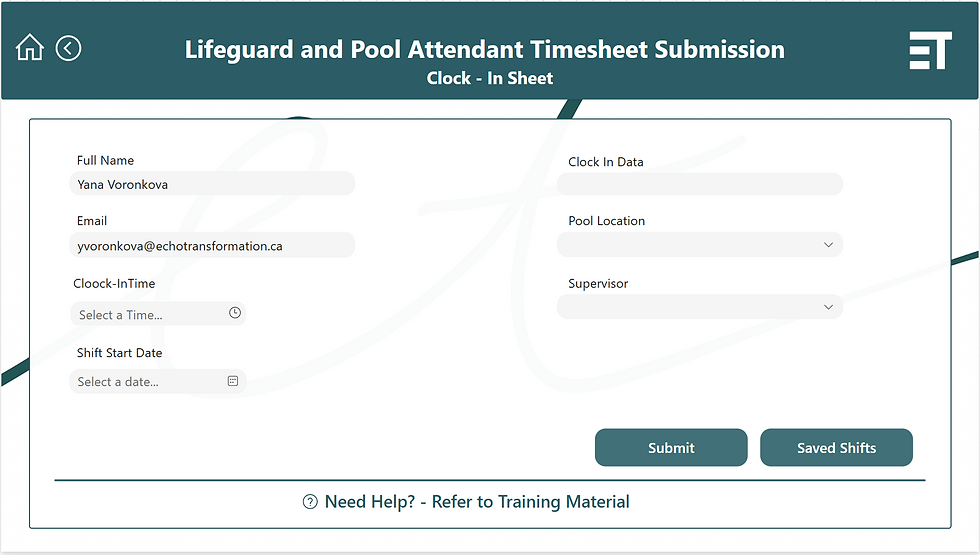
On the Clock In screen, the Full Name and Email Address of the user appear automatically, based on the account of the person who opened the app. This ensures accurate identification and eliminates the need for users to type in their information manually.
Users then manually select their clock-in time and shift start date. This provides needed flexibility especially if someone forgot to clock in earlier and needs to record the correct start of their shift. Once both the clock-in time and shift start date are selected, the values automatically populate the dedicated Clock In data field on the screen.
Next, the user selects the pool location where they are working and the supervisor on shift.
Even though the time and date are selected manually by the user, the app also stores the actual submission timestamp (the moment the user taps “Submit”) in the SharePoint list for auditing and transparency.
Clock - Out Page
The Clock Out screen begins by automatically displaying the user’s Full Name and Email Address, just like on the Clock In screen. These fields populate based on the logged-in user, ensuring consistent identification without any manual entry.
Users then manually select their clock-out time and shift end date, allowing them to correct the record if they forgot to clock out at the proper time. Once selected, these values automatically populate the Clock Out data field.
Unlike the Clock In screen, users do not select a pool location or supervisor during clock out.
Instead, this screen includes two additional fields:
Incident indicator – to record whether any incidents occurred during the shift
Notes/Comments – allowing users to add context or details about their shift, work conditions, or incidents
As with clock-in entries, the app also captures the submission timestamp in the SharePoint list, showing the exact moment the user tapped “Submit” for auditing and reporting accuracy.

Saved Shift Page
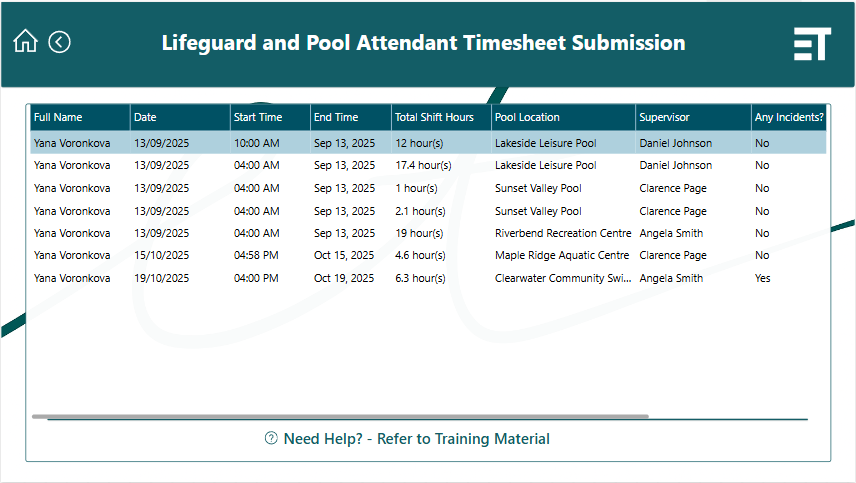
All recorded shifts including selected times, submission timestamps, user info, and locations are stored in a SharePoint list.
The Saved Shifts screen displays this information back to the user so they can review past entries. Supervisors can access the same SharePoint list directly for review, exporting, or connecting to Power BI for reporting and analytics.

How the Process Works
Here’s what a typical user experience looks like:
Arrive at a location → open the Clock In screen
Select clock-in time → submit
Work the shift → app tracks active status
Open Clock Out screen → select clock-out time → submit
Review at any time on the Saved Shifts screen
This ensures accurate time reporting while allowing flexibility for corrections.
Additional Features That Can Be Added
Supervisor notifications: A flow that alerts supervisors when a shift is completed.
Automated summary reports: Scheduled daily or weekly shift summaries.
QR code check-in: Scan a location-specific QR code to begin a shift.
Role-based views: Different interfaces for lifeguards, supervisors, and managers.
Active shift dashboard: Overview of who is currently clocked in.
Final Thoughts
This app demonstrates how Power Apps can streamline time tracking across multiple locations while maintaining clear governance, flexibility, and strong data structure. By building within a solution, keeping dev and prod environments separate, and storing data in SharePoint, the app remains scalable, maintainable, and ready for future enhancements.
Echo Transformation can help you create fully customized Power Apps solutions tailored to your processes and operational needs. Whether you need a simple internal tool or a complex, multi-component solution, we’re here to guide you from concept to deployment. Reach out to us anytime to discuss how we can support your digital transformation journey.


Comments